Introduction
Imagine a potential customer searching for a business like yours on Google Maps, but your business is nowhere to be found. Even if you offer excellent products or services, poor local visibility can make it harder for customers to discover and contact you.
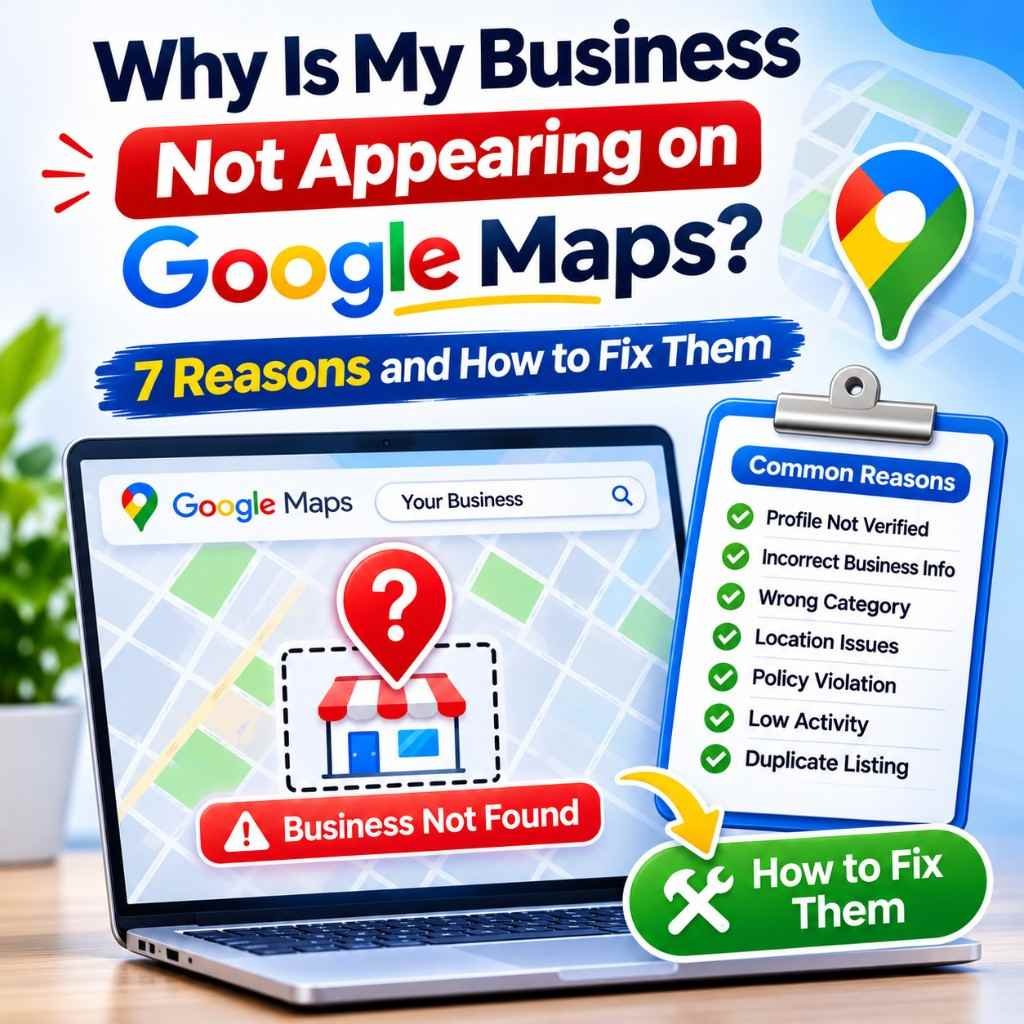
If you are wondering, “Why is my business not appearing on Google Maps?”, several factors could be responsible. Your Google Business Profile might not be verified, your business information could be incorrect, or your listing might have been suspended. In other cases, your business may appear on Google Maps but not rank for relevant local searches.
The good news is that you can investigate these issues by checking your profile status, reviewing your business information, and confirming that your listing follows Google’s guidelines.
In this guide, we will explain seven common reasons your business is not showing on Google Maps and provide practical steps to help you fix the problem and improve your local search visibility.
1. Google Business Profile Is Not Verified
If verification is required, follow the method Google provides for your business One of the first things to check when your business is not showing on Google Maps is your Google Business Profile verification status.
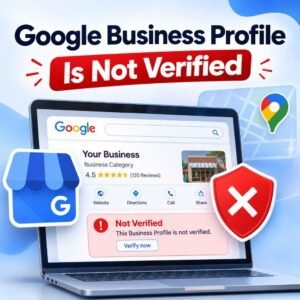
Verification helps Google confirm that you are authorized to manage your business information. If your profile is unverified or awaiting verification, your business may have limited visibility or may not appear as expected.
How to Fix It
Follow these steps:
- Sign in to the Google account associated with your business.
- Open your Google Business Profile and check its verification status.
- sines.
- Complete the requested steps and wait for Google to process your verification.
Available verification methods can vary by business and account. Use only the options provided by Google.
2. Business Profile Information Is Incomplete or Incorrect
The Business is a outdated or incorrect business information makes it harder for customers to understand what your company has and where you operate.
The address you provided may also be wrong, your phone number is no longer valid or simply the business category does not suit what I was looking for —and these are just a few examples.
How to Fix It
Check Your Google Business Profile — Make the following information accurate.
Business name ,Business address, if publicly displayed, Phone number ,Website URL Primary and secondary business categories, Opening hours
Products and services, where applicable
Do not add keywords to improve ranking; use your actual commerce name. Ensure you have accurate and consistent information, however allow for Google to take time in processing the changes.
3. Google Business Profile Has Been Suspended or Restricted
A suspended or restricted Google Business Profile may become unavailable to customers. Google can take action against profiles that violate its Business Profile guidelines.
Potential issues include misleading business information, ineligible locations, inappropriate business names, or other policy violations. However, a business not appearing in search results does not automatically mean its profile has been suspended.
How to Fix It
First, sign in to your business account and check for suspension notices, restrictions, or requests for additional information.
If your profile has been suspended:
- Review Google’s Business Profile guidelines.
- Identify and correct the underlying policy issue.
- Gather supporting documents if required, such as business registration documents or utility bills.
- Submit a reinstatement appeal through Google’s official process.
- Monitor your appeal and follow any additional instructions.
Avoid creating another profile for the same business to work around a suspension. Resolve the existing profile issue through Google’s official process.
4. Business Has Duplicate Google Maps Listings
If your business has genuinely separate eligible locations, duplicate listings can occur when the same business has more than one profile. This might happen when a previous owner created a listing, an employee set up another profile, or someone created a new listing without checking for an existing one.
Duplicates can confuse customers and create problems with ownership and profile management. Google may also identify a listing as a duplicate and prevent it from appearing separately.
How to Fix It
Search Google Maps using your business name, address, and phone number. Check whether another profile represents the same business.
If you find a duplicate:
- Identify which profile is the correct, established listing.
- Request ownership or access if necessary.
- Follow Google’s instructions for resolving duplicate profiles.
- Avoid creating additional listings while the issue is being investigated.
Each location should meet Google’s requirements for its own profile.
5. Business Is Not Ranking for Relevant Local Searches
Sometimes, your business is visible on Google Maps when someone searches for its exact name but does not appear for searches such as “plumber near me” or “bakery in Dhaka.”
This usually indicates a local ranking issue rather than a missing business listing.
Google explains that local search results primarily depend on three factors:
Relevance: How well your business profile matches the searcher’s query.
Distance: How far your business is from the searcher or the location used in the search.
Prominence: How well-known your business is, based on information Google can identify about it.
These factors explain why your business might appear for some searches but not others. A complete profile does not guarantee a top position for every keyword or location.
How to Improve Your Local Search Visibility
- Choose the most appropriate primary business category.
- Add accurate information about your services and products.
- Keep your opening hours and business details updated.
- Encourage genuine customer reviews without offering prohibited incentives.
- Maintain a useful website with clear service pages and contact information.
- Build relevant local citations and earn legitimate mentions from trusted websites.
Avoid keyword stuffing or creating misleading location pages. Focus on providing accurate information that helps customers find and understand your business.
6. Business Address or Service Area Is Incorrect
Your business location can influence whether your profile appears in relevant Google Maps searches. An incorrect address, misplaced map pin, or inaccurate service-area settings can make it harder for customers to find you.
This is particularly important for service-area businesses, such as plumbers, electricians, cleaners, and mobile repair services.
For example, a restaurant generally serves customers at its physical location, while a plumber may travel to customers’ homes and hide their residential address.
How to Fix It
Check your Google Business Profile and confirm that your location details accurately reflect how your business operates.
- Verify the address and map pin for your physical business location.
- Review your service-area settings if you travel to customers.
- Hide your residential address when required for an eligible service-area business.
- Update your location if your business has moved.
- Make sure your business complies with Google’s location and eligibility guidelines.
Do not use a virtual office, an unrelated address, or a location where your business does not genuinely operate to improve local rankings.
7. Business Is Not Eligible for a Google Business Profile
Not every business or online operation qualifies for a Google Business Profile. Google generally requires businesses to have in-person contact with customers during their stated operating hours, subject to its eligibility rules and specific exceptions.
For example, an online-only business that sells products without in-person customer contact generally does not qualify. A business that serves customers at its premises or travels to customers may qualify if it meets the relevant requirements.
How to Fix It
Review Google’s official Business Profile eligibility guidelines before making further changes.
Ask yourself:
- Does my business have genuine in-person contact with customers?
- Does the listed location meet Google’s requirements?
- Does my business name accurately reflect its real-world name?
- Have I provided truthful information about how the business operates?
If your business is eligible, correct any inaccurate information and complete the appropriate verification process. If it is not eligible, creating additional profiles will not resolve the problem.
How to Fix a Business That Is Not Showing on Google Maps
The following checklist will help you identify why your business isn’t listed on Yelp.
Step 1: Search for Your Exact Business Name
Open Google Maps and type in your business name and then the town/city where you are located. See if there is no profile at all or if it doesn’t come up when someone searches for general services in that area.
Step 2: Check Your Google Business Profile Status
Log-in to your account which governs your profile. Check if there are any pending reviews, verification requests, restrictions, suspensions, etc., that require action.
Step 3: Review Your Business Information
Check the correctness of the company name, location, contact information (telephone number), classification, operating hours, and Web site. Only modify the data that is incorrect.
Step 4: Look for Duplicate Listings
Search for other profiles representing the same business. If a duplicate exists, follow Google’s guidance instead of creating another listing.
Step 5: Check Your Business Eligibility
Make sure your business meets Google’s eligibility requirements and that its address, service area, and other details comply with its guidelines.
Step 6: Allow Time for Google to Process Changes
Verification, profile updates, and reinstatement reviews can take time. Check your profile status and follow Google’s instructions instead of repeatedly submitting the same changes.
Step 7: Contact Google Business Profile Support
If your profile appears eligible and compliant but remains unavailable, visit the official Google Business Profile Help Center. Explain the issue clearly and provide any requested information.
You can start here:
Following these steps can help you identify the likely cause and choose the appropriate solution without making unnecessary changes.
Frequently Asked Questions
1. Why Is My Business Not Showing on Google Maps but Showing on Google Search?
Your business may appear on Google Search but be difficult to find on Google Maps because of differences in search queries, profile status, or local visibility. Search for your exact business name on Maps and check your Google Business Profile status. If the issue continues, review your verification, eligibility, and listing information.
2. How Long Does It Take for a Business to Appear on Google Maps?
The timing depends on verification, profile reviews, and the type of change being processed. Some updates may appear relatively quickly, while others require additional review. Check your profile status and follow Google’s instructions rather than relying on a guaranteed timeline.
3. Can an Unverified Business Appear on Google Maps?
An unverified business profile may have limited visibility or may not appear as expected. Verification helps establish your authority to manage the listing. Follow the verification method Google provides for your business and check the profile status after completing the process.
4. Why Can I See My Business on Google Maps but My Customers Cannot?
You may see your profile while signed in to the account that manages it, but this does not necessarily mean it is publicly visible to customers. Check for verification issues, restrictions, or suspension notices. Also, test your business name in Google Maps without relying solely on your account’s view.
5. Does a Google Business Profile Need a Physical Address?
Not every eligible business needs to display a public address. Service-area businesses that travel to customers can generally hide their address when appropriate. However, businesses must meet Google’s eligibility requirements and accurately represent how they serve customers.
6. Why Is My Business Not Showing on Google Maps for “Near Me” Searches?
Google uses relevance, distance, and prominence to determine local results. Your business may not appear for a “near me” search if the searcher is too far away, the profile does not closely match the query, or competing businesses have stronger local visibility. Improve your profile accuracy and relevance, but remember that distance and ranking cannot be controlled completely.
7. Can Customer Reviews Help My Business Appear on Google Maps?
Genuine customer reviews can contribute to your business’s prominence and help potential customers assess your services. Encourage customers to share honest feedback without offering rewards or incentives in exchange for reviews. Reviews alone, however, do not guarantee higher rankings.
8. Will Updating My Google Business Profile Automatically Improve My Rankings?
Updating your profile can improve the accuracy and relevance of your business information, but it does not guarantee better rankings. Local results also depend on distance, prominence, competition, and the search query. Make updates to provide useful, accurate information rather than expecting an immediate ranking increase.
9. Should I Create a New Google Business Profile If My Existing One Is Missing?
No. First, investigate the status of your existing profile. Creating another profile for the same business can lead to duplicate listing issues and make the situation more complicated. Resolve verification, ownership, suspension, or visibility problems through Google’s official support and reinstatement processes.
10. How Can I Check Whether My Business Is Ranking on Google Maps?
Search for your business name and relevant service keywords in Google Maps. Check from different locations and compare results for different queries, remembering that rankings can vary by searcher location. You can also monitor your Business Profile performance and relevant website search data to understand how customers discover your business.
Conclusion
If your business is not appearing on Google Maps, start by checking your Google Business Profile verification and publication status. Then review your business information, investigate duplicate listings, confirm your eligibility, and check whether your profile complies with Google’s guidelines.
If customers can find your business by its exact name but not through relevant local searches, the problem may be ranking-related rather than a missing listing. In that case, focus on profile relevance, accurate business details, useful website content, and genuine customer reviews.
Remember that Google Maps visibility depends on several factors, and no SEO provider can guarantee a specific local ranking. By identifying the cause and addressing it systematically, you can improve your chances of being discovered by customers searching for your products or services locally.