If you’re looking to remove your Google My Business (GMB) listing, it’s important to follow the correct steps. If you’re closing your business, fixing a wrong listing, or removing it from Google, it’s important to know how to do it correctly. This guide will help you remove your Google My Business listing easily. Moreover ” The easily google review process. We’ll walk you through each step.
Section 1: Why You Might Want to Remove Your Google My Business Listing
Reasons to Remove Your Google My Business Listing
There are several reasons why you might want to remove your Google My Business listing. Here are some of the most common:
Business Closure: If your business is permanently closed, update your Google listing. This way, potential customers won’t waste time looking for a place that isn’t there anymore.
Change of Business Location: If you’ve moved your business to a new location, you may no longer want your old listing to appear. Removing the old listing will help customers find your new business address.
Incorrect Information: If your business listing contains incorrect details, like the wrong address, phone number, or business hours, you might prefer to remove the listing entirely rather than fix the errors.
Section 2: Step-by-Step Guide to Removing Your Google My Business Listing
Step 1: Mark Your Business as Permanently Closed
The first step to removing your Google My Business listing is to mark your business as permanently closed. This will signal to Google and customers that your business is no longer in operation.
To mark your business as closed:
- Sign in to your Google My Business account.
- Select the business location you want to update.
- In the menu on the left, click on Info.
- Under Business information, click on Close this business on Google.
- Confirm that your business is permanently closed.
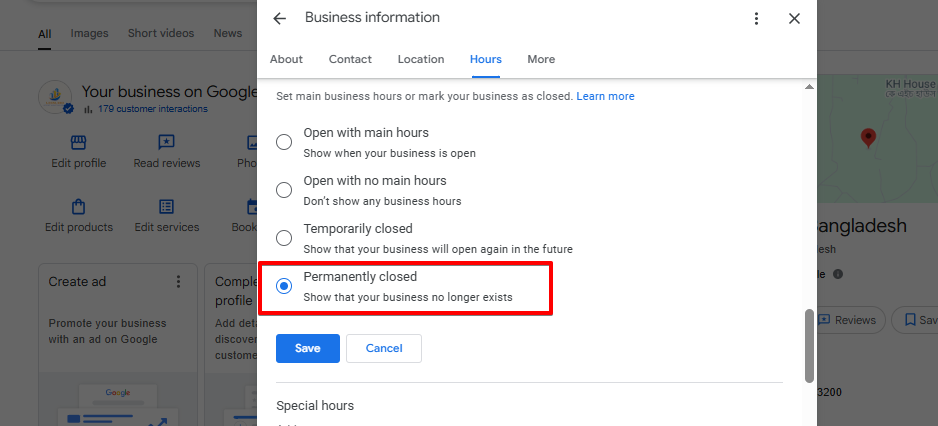
By marking your business as closed, you make it clear to customers that your location is no longer active, which can help prevent confusion.
Step 2: Remove Business Profile Content and Managers
Next, you’ll want to remove any content associated with your Google Business Profile. This includes images, descriptions, business hours, and any other details that might still be visible to customers.
Additionally, if you’ve assigned managers or collaborators to help manage your listing, you should remove them to prevent unauthorized access to your profile. To do this:
- Sign in to Google My Business.
- Go to Users from the main dashboard.
- Click on the person you want to remove and select Remove.
This ensures that no one can make changes to your listing once you’ve decided to remove it.
Step 3: Suggest an Edit or Report the Business as Closed
After marking your business as closed and removing all content, the next step is to suggest an edit to Google. This is especially useful if your listing is still showing up as an active business in search results or on Google Maps.
- Open Google Maps.
- Find your business on the map or search for it by name.
- Click on Suggest an edit.
- Select Remove this business or Mark as closed permanently.
This will help Google update the listing as closed, ensuring that no one is misled into visiting a location that’s no longer open.
Step 4: Wait for Google’s Review
Once you’ve made all the necessary changes, you’ll need to wait for Google to review and process your request. This can take anywhere from 24 to 48 hours. During this time, your business listing may still appear in search results, but it should eventually be removed or marked as closed.
Google will send you an email confirming when the changes have been made. Be patient, as the review process can take some time.
Section 3: Additional Options for Removal
How to Unclaim Your Google My Business Listing
If you didn’t create the listing or no longer want to manage it, you can unclaim the business. To uncalm your listing:
- Sign in to Google My Business.
- Select the business you want to unclaim.
- Click on Manage Location.
- Scroll to the bottom and select Remove Location.
Once you’ve unclaimed the business, you will no longer be able to manage the listing, but it will remain visible to the public.
Remove Duplicate Listings
In some cases, your business might appear in multiple listings across Google Maps and Search. These duplicates could confuse potential customers or harm your business’s online presence. To remove a duplicate listing:
- Sign in to Google My Business.
- Find the duplicate listing.
- Report it as a duplicate or suggest an edit to remove it.
Removing duplicates ensures that customers aren’t seeing conflicting information about your business.
Reporting Incorrect Information
If your listing has incorrect information, such as wrong hours or location details, you can report the error to Google. To do this:
- Open Google Maps.
- Search for your business.
- Click on Suggest an edit.
- Select Change name or other details or Remove this business.
Reporting incorrect information helps Google keep its search results accurate and up-to-date.
Section 4: What Happens After You Remove Your Google My Business Listing?
What to Expect After Removal
After removing your Google My Business listing, you may notice that your business no longer shows up in Google search results or on Google Maps. However, it’s important to note that Google may still show snippets of your business data in search results, especially if your business had reviews or other information attached to it. The listing will eventually disappear, but it can take time for Google to fully update its search results.
Can You Recover Your Removed Google My Business Listing?
If you removed your business listing by accident or changed your mind, there is a possibility of recovering it. To restore your Google My Business listing:
- Sign in to Google My Business.
- Locate the business and select Reinstate.
- Google will review your request and may restore the listing if it meets the necessary guidelines.
It’s important to act quickly if you want to recover a removed listing, as the longer it’s been gone, the harder it may be to restore.
Section 5: Need Help with Google My Business?
Get Expert Help with Google My Business Management
If you’re unsure about removing your Google My Business listing or need assistance managing your profile, consider reaching out for professional help. An experienced SEO agency can guide you through the process of removing or managing your business listing properly.
Conclusion
Final Thoughts on Removing Your Google My Business Listing
Removing your Google My Business listing is a straightforward process if you follow the steps carefully. Whether you’re closing your business, updating information, or removing duplicates, it’s essential to manage your online presence correctly. Always ensure that all details are removed, and take time to wait for Google to process the changes.